What’s Inside
- Declutter Ruthlessly Before Doing Anything Else
- Embrace the “One Screen” Philosophy for Core Apps
- Set Up Smart Stacks for Dynamic Information
- Master the App Library or App Drawer
- Color-Code Your Folders for Visual Cues
- Adopt Verb-Based Folder Naming
- Alphabetize Within Folders for Consistency
- Customize App Icons for a Cohesive Aesthetic
- Strategic Widget Placement: Prioritize Productivity
- Utilize Focus Modes for Contextual Home Screens
- Consolidate Notes and Tasks with Integrated Hubs
- The “Rule of Three” for Home Screen Pages
- Surprising Tip: Themed Rows Instead of Folders
- Use Emoji-Labeled Folders for a Playful Touch
- Implement a Monthly Review Cycle
- Physical Accessories to Support Digital Organization
Last Tuesday at the Target checkout line, I dropped my iced coffee trying to find my digital wallet. My phone screen was a messy grid of 84 unread notification badges and scattered icons. That humiliating puddle of $4.50 cold brew forced me to finally tackle my home screen apps organization. If you’re swiping past pages of forgotten games just to find your grocery list, it’s time for a reset. I’ve spent the last three weeks testing every digital decluttering method out there. Most of them are too complicated. Some actually made my phone harder to use. But I finally cracked the code. Here’s exactly how I fixed my digital mess.
1. Declutter Ruthlessly Before Doing Anything Else

I’m guilty of hoarding digital clutter. Last month, I realized I still had a parking meter app from a city I haven’t visited since 2019. A common mistake is keeping apps you rarely use just in case you need them someday. You won’t. Dedicate exactly 20 minutes this weekend to swipe through your app library and delete anything you haven’t opened in the last four months. For iOS users, you need to use the “Offload Unused Apps” feature. Go to Settings, then General, then iPhone Storage. It frees up gigabytes of space without losing your actual data. This is a brilliant move for maintaining basic digital hygiene. I tried manually deleting things for months before figuring this out. My thumb actually cramped up. Skip the manual deletion if you’re an Apple user. If you’re on Android, go into your settings and ruthlessly uninstall those free games you downloaded three years ago. I personally swear by setting a physical timer for this. I use a $14.99 Time Timer from Amazon. When the red disk disappears, I stop deleting. It prevents decision fatigue. Most people get this wrong by trying to organize trash. Don’t organize apps you don’t use. Delete them first. It’s the only way to start fresh.
2. Embrace the “One Screen” Philosophy for Core Apps

A massive trend right now is digital minimalism. You really only need one primary screen. Aim to keep only your four to eight most essential, frequently used apps on your main home screen. Put them right at the bottom within easy thumb reach. This reduces visual clutter and stops your brain from panicking every time you unlock your phone. I used to have 24 apps on my first page. It was visually exhausting. Now, I only keep my messages, phone, camera, and my banking app. Everything else is hidden. Honestly, this completely changed how I interact with my phone. When I’m standing in the produce aisle at Whole Foods smelling the fresh cilantro and trying to pull up my grocery list, I don’t want to dig through three pages of colorful squares. I want my list right there. If you put too many apps on your first page, you’re just recreating the exact mess we’re trying to fix. Limit yourself to a single row of four apps above your dock. It feels weird at first. You might even hate it for a day or two. Stick with it. Your thumb will thank you. You won’t regret the clean visual space.
3. Set Up Smart Stacks for Dynamic Information

Widgets are great, but they take up too much precious real estate. You need to use iOS Smart Stacks. This lets you combine two to five related widgets into a single, space-saving square. I created a “Morning Brief” stack that I check while drinking my hot coffee. It includes the Carrot Weather app (they have a free tier, but I pay $19.99 a year for premium), my Apple Calendar, and my Todoist “Today” view (the basic plan is free, but premium is $4 a month). I love the Smart Rotate feature. It automatically displays the most relevant widget based on the time of day. At 7 AM, it shows me the weather. By 9 AM, it shows my first meeting. Most people get this wrong. They scatter six different widgets across three pages. That defeats the whole purpose of quick information. Group them up. I tried making a giant stack of ten widgets once. Don’t do this. It takes forever to swipe through and you end up missing important reminders. Keep your stacks small and hyper-focused on a specific time of day or activity. It’s a much smarter way to consume daily data.
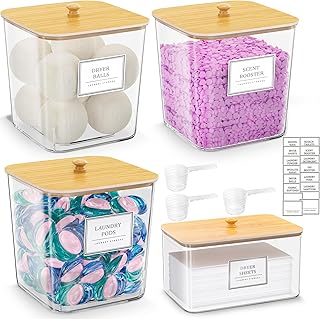
HomePekite Laundry Pods Storage Container
If you want something that just works, HomePekite Laundry Pods Storage Container is a safe bet (15 reviews, 4.5 stars).
4. Master the App Library or App Drawer

You absolutely don’t need to display every single app icon on your home screen. Stop treating your phone like a junk drawer. For iOS users, let the App Library do the heavy lifting. It automatically categorizes your less-frequently used apps. You just swipe left past your last home screen to find them. If you’re an Android user, rely on your App Drawer. It keeps your main screen totally clean while keeping all your apps searchable. I fought this feature for a whole year. I wanted to manually organize every single app into perfectly curated folders. It was a massive waste of time. Every time I downloaded a new app, my perfect system broke. Now, I let the phone do the sorting. If I need my Costco app to flash my membership card at the door, I just pull down and type “Cos” in the search bar. It’s infinitely faster than hunting through a folder named “Shopping.” Trust the search function. It’s smarter than we are. Let go of the need to visually control every single square inch of your digital space. You’ll save hours of mindless scrolling.
5. Color-Code Your Folders for Visual Cues

This sounds completely unhinged until you actually try it. Organize your apps by the dominant color of their icons. Create a “Blue Apps” folder for things like Twitter, Facebook, and Safari. Create a “Green Apps” folder for Messages, Spotify, and FaceTime. Your brain processes colors significantly faster than it processes text. This allows for incredibly quick navigation once you get used to it. I tried this last month and it blew my mind. I was looking for the Starbucks app. My brain instantly knew it was green, so I tapped the green folder. Boom. There it was. No reading required. A common mistake is mixing up shades too much. Keep it simple. Red, orange, yellow, green, blue, purple, white, and black. If an app has a multi-colored icon, just pick the color that stands out the most to you. I put the Google Maps app in my white folder because the background is mostly white. This method makes your phone look like a beautiful rainbow instead of a chaotic mess of text. It’s visually soothing and practically efficient. I can’t believe I didn’t try this years ago. You might also like: 15 Creative Dollar Tree Hacks Organizing Ideas for a Fresh New Look
6. Adopt Verb-Based Folder Naming

If color-coding isn’t your vibe, you need to change how you name your folders. Stop using generic, boring categories like “Utilities” or “Productivity.” Those words mean nothing to your tired brain at 8 PM. Instead, adopt verb-based folder naming. Name your folders based on the actual action you perform with the apps inside. I use “Read” for my Kindle app and Apple Books. I use “Create” for Canva and Procreate. I use “Listen” for Spotify and my podcast app. This is an expert-backed method that makes finding apps deeply intuitive. Think about what you want to do, not what the app is categorized as in the app store. When I want to buy something from Walmart, I don’t look for a “Retail” folder. I look for my “Shop” folder. It holds my Walmart app, my Amazon app, and my Target app. I used to have a folder called “Miscellaneous.” Never do this. It becomes a digital dumping ground for apps you don’t know what to do with. If you can’t assign a verb to an app, you probably don’t need it on your phone at all. You might also like: 15 Gorgeous Hacks Home Organization to Inspire Your Next Project
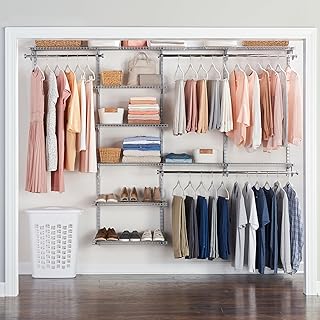
Rubbermaid Configurations Deluxe Custom Closet Kit 4-8 Ft.
If you want something that just works, Rubbermaid Configurations Deluxe Custom Closet Kit 4-8 Ft. Adjustable is a safe bet (81 reviews, 4.5 stars).
7. Alphabetize Within Folders for Consistency

Once you have your folders set up, you have to organize the apps inside them. If you have a folder with more than six to nine items, you must arrange them alphabetically. This provides a consistent, logical order that drastically reduces your searching time. This is especially crucial for apps you only use once a month. I keep all my travel apps in a folder called “Travel.” I have Delta, Southwest, Uber, Lyft, and Airbnb in there. Before I alphabetized them, I’d frantically swipe back and forth trying to find my boarding pass while standing in the noisy TSA line. It was incredibly stressful. Now, I know exactly where the Delta app is. It’s right after Airbnb. It takes about five minutes to drag and drop your icons into alphabetical order, but it saves you hours of frustration over the course of a year. Don’t rely on the order you downloaded them in. That’s random and unhelpful. Take control of the layout. It’s a tiny detail that makes a massive difference in your daily digital experience. You won’t regret taking the time to do this. You might also like: 20 Brilliant Indian Home Makeover Ideas for Any Style
8. Customize App Icons for a Cohesive Aesthetic

App icon customization is a massive trend for home screen apps organization right now. The native options in iOS let you switch icons to “Dark” or “Clear” modes instantly. It immediately calms down the visual noise. You can also use the Apple Shortcuts app to create custom icons with specific images or minimalist symbols. If you’re an Android user, you have it even easier. You can explore icon packs from the Google Play store. I highly recommend the “Hera Icon Pack.” It’s usually available for a one-time purchase of $1.99. It offers over 5,000 perfectly matched icons and 34 custom wallpapers for a completely unified look. I spent three hours last Sunday replacing all my neon, mismatched app icons with soft beige and muted green alternatives. My phone now looks like a high-end interior design magazine. Be warned, though. Using the Shortcuts app on an iPhone to make custom icons can be tedious. I messed up my first batch and linked my camera icon to my banking app. It was confusing. Take your time and double-check your links. It’s worth the effort for a beautiful screen.
9. Strategic Widget Placement: Prioritize Productivity

Where you put your widgets matters just as much as which ones you use. You need to prioritize productivity on your main screen. Place your absolute most crucial widgets front and center. I keep a medium-sized Google Calendar widget right at the top of my phone. Directly below it, I have my TickTick task list widget. The basic TickTick plan is free, but I pay $2.79 a month for the premium version so I can access custom calendar views. Placing these two widgets on my main screen ensures all my key information is visible at a single glance. I don’t even have to open the apps to see that I have a dentist appointment at 2 PM. Most people fill their home screens with photo widgets or battery indicators. That’s a waste of prime real estate. Put your photos on your lock screen. Keep your home screen focused on what you actually need to accomplish today. I used to have a giant Spotify widget taking up half my screen. I realized I only use it when I’m driving. I moved it to page two and got my productivity back.

Galasily 3 Pack Laundry Detergent Dispenser Container with
Galasily 3 Pack Laundry Detergent Dispenser Container with Tray punches above its price — 114 buyers rated it 4.5 stars. I would buy it again.
10. Utilize Focus Modes for Contextual Home Screens

If you aren’t using Focus Modes on your iPhone, you’re missing out on the best organizational tool Apple ever created. You can create custom home screens linked to specific Focus Modes like “Work,” “Personal,” or “Fitness.” When my “Work” Focus is active from 9 AM to 5 PM, my phone completely changes. Only my work-related apps and widgets appear. My email, Slack, and calendar are front and center. My social media apps completely disappear. It totally eliminates distractions. When 5 PM hits, my phone switches to “Personal” mode. Slack vanishes, and Instagram comes back. I honestly can’t function without this feature anymore. I tried working with my normal home screen for a week while traveling, and my screen time skyrocketed because I kept mindlessly tapping TikTok. Setting up Focus Modes takes about thirty minutes, but it pays off immediately. Don’t make the mistake of creating too many modes, though. I once had a “Reading” mode, a “Cooking” mode, and a “Driving” mode. It got way too complicated. Stick to three basic categories. It’s much easier to manage.
11. Consolidate Notes and Tasks with Integrated Hubs

Stop scattering your brain across six different note-taking apps. You don’t need Apple Notes, Google Keep, Evernote, and a physical planner. You need to consolidate your notes and tasks into one integrated productivity hub. Instead of flipping between apps, consider a comprehensive tool. I personally swear by Amplenote. It starts at $6.67 a month and flawlessly combines your notes, your daily tasks, and your calendar into one single interface. If you want something cutting-edge, check out Saner.AI. They offer a great free plan. It uses artificial intelligence to turn your messy, brain-dump thoughts into neatly organized, actionable tasks. This is a massive trend right now for efficient organization. I used to have a folder called “Notes” that contained five different apps. I could never remember which app held my grocery list for Sprouts and which one held my work meeting notes. It was a disaster. Pick one powerful app, put it on your main screen, and delete the rest. Your digital life will feel infinitely lighter. You won’t miss the clutter of multiple text apps.
12. The “Rule of Three” for Home Screen Pages

Expert opinion suggests you must limit yourself to no more than three home screen pages. Any more than that, and you’re just hoarding digital clutter. The first page is strictly for your daily essentials. Things you open multiple times a day. The second page is for your categorized folders. This is where your verb-named or color-coded groups live. The third page is for less-frequently used apps or large widgets that you only check occasionally. Anything beyond that third page should be banished to the App Library or App Drawer. I used to have seven pages of apps. I’d swipe endlessly, looking for the Kroger app to clip digital coupons before walking into the store. It was maddening. Enforcing the “Rule of Three” forced me to make hard decisions about what actually deserved my attention. If an app doesn’t make the cut for those three pages, it means I don’t really care about it. It’s a harsh reality check, but it’s totally necessary for maintaining a clean, functional phone interface. Don’t let your pages multiply out of control.

AMKUFO 6 Pack-Closet-Organizers-and-Storage
A dependable everyday pick — AMKUFO 6 Pack-Closet-Organizers-and-Storage pulls in 52 ratings at 4.5 stars. Not flashy, just solid.
13. Surprising Tip: Themed Rows Instead of Folders

If you absolutely hate the look of folders, there is another way. Organize your apps into themed horizontal rows. This is a brilliant home screen apps organization hack that provides structure without the visual enclosure of those little grey squares. For example, your top row could be “Communication.” You’d put your Phone, Messages, Email, and WhatsApp there. The next row down could be “Social,” featuring Instagram, TikTok, Facebook, and Pinterest. Your brain naturally reads left to right, top to bottom. This layout taps into that natural reading rhythm. I tried this on my iPad last month and it looks incredibly sleek. The only negative is that you are strictly limited to four apps per category per page. If you have five social media apps, one gets left out or ruins the row. You have to be ruthless about which apps make the cut. I had to banish Snapchat to my App Library because it didn’t fit in my main social row. But honestly, I don’t even miss it. The clean, grid-like aesthetic is totally worth the sacrifice.
14. Use Emoji-Labeled Folders for a Playful Touch

If you’re going to use folders, you have to make them fun. Instead of plain, boring text, use emojis to label your folders. This adds a highly personalized and visually appealing element to your organization. Use a music note emoji for your audio apps. Use a camera emoji for your photo editing tools. I use a little shopping cart for my retail apps, including my Trader Joe’s list app. It looks so much cleaner than a tiny line of text. I recently changed my finance folder from the word “Money” to a simple flying stack of cash emoji. It makes paying my bills slightly less depressing. I also use a little airplane emoji for my travel folder. One mistake I made early on was using three or four emojis per folder. I had a camera, a picture frame, and a sparkle emoji all on one folder. It looked incredibly cluttered and chaotic. Stick to one single, highly recognizable emoji per folder. It keeps the aesthetic minimal while still giving your brain a fast, visual shortcut to the apps you need.
15. Implement a Monthly Review Cycle

Your phone is a living, breathing digital space. You can’t just organize it once and expect it to stay perfect forever. You must implement a monthly review cycle. Schedule a recurring calendar event for the first Sunday of each month. Block out exactly 15 minutes to review your layout. This allows you to adapt to changing app usage, delete new unused apps you downloaded on a whim, and refine your layout as your needs evolve. I use a $22.00 Moleskine paper planner to track my monthly habits, and “Phone Audit” is written on the first Sunday of every month. Last month during my review, I realized I hadn’t opened my fancy habit-tracking app in three weeks. I deleted it. It felt great. Without this scheduled review, your phone will slowly creep back into a state of total chaos. It’s like cleaning out your refrigerator. You have to toss the expired condiments eventually. Treat your digital space with the exact same respect you give your physical home. A quick 15-minute maintenance session saves you from a massive three-hour overhaul later.

3-Tier Hanging Laundry Basket Organizer:Foldable Wire Shelf
If you want something that just works, 3-Tier Hanging Laundry Basket Organizer:Foldable Wire Shelf Laundry Ro is a safe bet (518 reviews, 4.5 stars).
16. Physical Accessories to Support Digital Organization

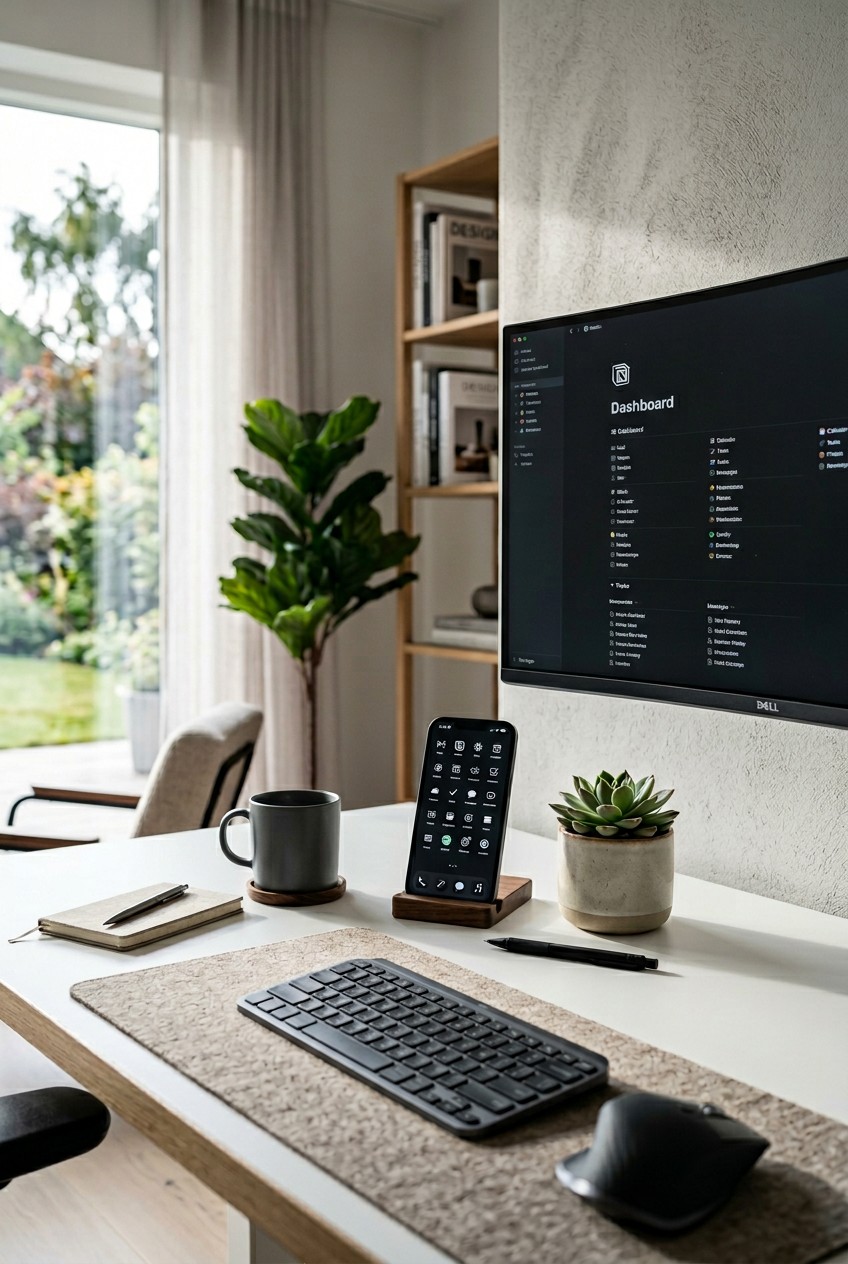
You can’t fully appreciate your beautifully organized home screen if your phone is constantly buried at the bottom of your purse or lying flat on a messy desk. You need physical accessories to support your digital organization. I absolutely love using a dedicated desktop phone stand. I bought the Lamicall Adjustable Phone Stand from Amazon for exactly $12.99. It sits right next to my computer monitor. Because I use the iOS Focus Modes and have my productivity widgets perfectly placed, my phone acts like a secondary, mini-dashboard while I work. I can glance over and see my TickTick widget and Google Calendar without ever touching the device. If your screen is smeared with fingerprints, all those color-coded folders and custom icons will look terrible. I keep a $4.50 bottle of Whoosh Screen Cleaner and a microfiber cloth in my desk drawer. I wipe my screen down every morning before I start working. It sounds obsessive, but a physically clean screen makes your digital organization pop. It’s the final touch that makes the whole system work perfectly.
I genuinely hope these tips help you reclaim your phone. I’d start with the ruthless deleting phase first, then move on to the fun stuff like color-coding. If you found this helpful, pin it to your favorite organization board on Pinterest so you can reference it during your next monthly review. Let’s conquer that digital clutter together!
Frequently Asked Questions
How often should I reorganize my home screen apps?
I highly recommend doing a quick 15-minute review on the first Sunday of every month. Delete any apps you haven’t used in the past month and adjust your widgets based on your current routine.
Is color-coding apps actually effective?
Yes, it’s incredibly effective. Your brain processes visual information and colors much faster than text. Grouping apps by dominant color allows you to rely on muscle memory and visual cues rather than reading tiny labels.
What is the rule of three for home screens?
The rule of three limits your phone to three main pages. Page one is for daily essentials, page two is for categorized folders, and page three is for large widgets. Everything else belongs in the app library.
How do I hide apps without deleting them?
If you’re on an iPhone, you can remove an app from your home screen without deleting it by sending it directly to the App Library. Android users can achieve the exact same result using their App Drawer.
