What’s Inside
- Embrace the App Library for a Clutter-Free Primary Screen
- Utilize Smart Stacks to Consolidate Widgets
- Implement Contextual Organization with Focus Modes
- Categorize Apps into Folders with Action Verbs
- Limit Your Primary Screen to Essential Apps
- Strategically Place Apps for Ergonomic Access
- Use Screen Time Limits to Stop Doomscrolling
- Customize Your Aesthetic with Minimalist Icon Packs
- Use Widgets for Glanceable Info, Not Distraction
- Direct New Downloads Straight to the App Library
- Delete Infrequent Apps and Use Browser Versions
- Schedule a Monthly Home Screen Organization Audit
- Turn on Smart Rotate for Widget Stacks
- Try Split Wallpapers for Visual Separation
- Avoid the Trap of Over-Optimization
- Match Your Digital Space to Your Physical Small Space
Last Tuesday at Whole Foods, I stood frozen in the checkout lane holding a $4.99 16 oz jar of organic marinara sauce. I was frantically swiping through five pages of phone apps trying to find my digital loyalty card. The cashier was sighing loudly. The fluorescent lights were buzzing overhead. My physical grocery cart was perfectly organized, but my digital life was a complete disaster. That minor panic attack made me realize home screen organization is just as vital as keeping your actual tiny apartment tidy. When your physical space is small, digital clutter makes everything feel ten times more claustrophobic. You’re already dealing with limited square footage. You shouldn’t have to deal with a messy digital space too. I’ve spent the last few weeks testing every widget, folder system, and layout trick available. I tried this wrong for months before figuring it out. Learned that the hard way. I used to think I needed every single app visible at all times. I was so wrong. Let’s fix that digital mess right now with some highly practical strategies. These methods will save your sanity and give your thumbs a much-needed break.
1. Embrace the App Library for a Clutter-Free Primary Screen

If you’re anything like I used to be, your phone’s a sprawling wasteland of tiny, colorful squares. I thought I needed to manually sort every single app into a perfectly curated grid. It took hours. It was miserable. Now, I’m fully embracing the App Library on iOS (and the App Drawer if you’re on Android) for a clutter-free primary screen. Don’t feel obligated to have every app visible on your home screen. For iOS users, swipe left past all your home screens to access the App Library. It automatically categorizes your apps into neat little boxes based on their function. On Android, the App Drawer serves a similar purpose, housing all installed applications. You can sort them alphabetically for incredibly easy access. Digital minimalism advocates suggest keeping only one or two pages of essential apps on your home screen. Let the App Library handle the rest. I realized how bad my digital hoarding was last month. I bought a $19.99 Anker 10W wireless charging pad at Target. When I set my phone down on my nightstand, the screen lit up. The cluttered mess of apps looked like a chaotic billboard in my peaceful bedroom. It was visually loud. Moving 90 percent of my apps to the App Library fixed that instantly. You aren’t deleting the apps. You’re just putting them in a digital closet where you can search for them when you actually need them.
2. Utilize Smart Stacks to Consolidate Widgets

I absolutely love widgets, but they take up an absurd amount of screen real estate. I used to have a weather widget, a calendar widget, and a podcast widget scattered across three different pages. It was exhausting to navigate. Instead of multiple individual widgets, create Smart Stacks to combine up to 10 widgets in a single space. This dramatically reduces clutter while providing relevant information throughout the day based on factors like time, location, and activity. To add one, long-press an empty area on your home screen. Tap the plus icon in the corner and select Smart Stack. You can customize the stack by adding or removing widgets and reordering them manually. I rely on this constantly. Last Thursday, I was doing a quick grocery run to Sprouts for a $3.49 5 oz bag of fresh arugula. Before I stepped out of my car, I just swiped down on my Smart Stack to see the rain forecast, then swiped again to pull up my digital shopping list. It’s incredibly efficient. A common mistake is stacking too many widgets that require active interaction. Keep your stacks focused on passive information. If you have to tap it constantly, it deserves its own dedicated icon, not a spot buried in a stack.
3. Implement Contextual Organization with Focus Modes

In 2026, using your device’s built-in features for different scenarios is a massive trend. I honestly can’t believe I lived without this feature for so long. iOS Focus Modes allow you to create custom home screens that display specific apps and widgets based on your activity. You can set up modes for Work, Personal, or Sleep. This dynamically adapts your phone to your current needs. Android’s Work Profile offers a similar separation for work-related applications. I used to get incredibly stressed out when I’d see my work email icon with a little red notification badge while I was trying to relax on a Saturday. It ruined my weekend vibe completely. Now, I have a specific Personal Focus Mode. When it kicks in at 5 PM on Friday, my entire home screen changes. The work email app vanishes. My Slack app disappears. They are replaced by my Kindle app and my favorite meditation timer. I set this up while sitting on my couch, burning an $18.50 3-wick Mahogany Teakwood candle from Bath and Body Works. The caramel-butter smell of cedar and oak mixed with the satisfaction of hiding my work apps was absolute bliss. You won’t regret setting these boundaries.
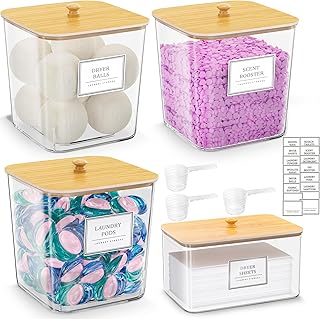
HomePekite Laundry Pods Storage Container
HomePekite Laundry Pods Storage Container punches above its price — 15 buyers rated it 4.5 stars. I would buy it again.
4. Categorize Apps into Folders with Action Verbs

Most people get this wrong. They group similar apps together with boring, generic names like Utilities, Productivity, or Entertainment. I did this for years, and I could never remember where I put anything. The human brain doesn’t think in abstract categories when it wants to accomplish a task. Consider verb-based folders like Create, Learn, Watch, or Listen to organize apps by their function rather than just their category. This simple psychological trick improves recall and intentional use. If I want to check my bank balance, I go to a folder called Manage. If I want to edit a photo, I go to Create. Last week, I was scanning a receipt from Kroger for a $2.99 32 oz carton of unsweetened oat milk. Because my receipt-scanning app was in a folder literally called Scan, I found it in two seconds. When it was buried in a folder called Finance, I’d swipe back and forth for a full minute looking for it. Skip the emojis in the folder names if you want a cleaner look. They just add visual noise. Stick to clear, actionable verbs. It’s a small tweak that makes your phone feel like a helpful tool rather than a confusing puzzle.
5. Limit Your Primary Screen to Essential Apps

Aim for a single, highly functional home screen with your most-used apps and widgets. Tech columnist Jason Aten suggests a strict two-home screen rule to boost happiness and productivity. Keep all other apps in the App Library or App Drawer. I personally swear by this method now, but it took some painful adjusting. I used to have seven full pages of apps. I’d swipe endlessly, forgetting what I was even looking for by the time I reached the last page. It was the digital equivalent of digging through a junk drawer looking for a specific paperclip. Now, my first page has my calendar, text messages, phone, and maps. My second page has my camera, photos, and Spotify. That’s it. Everything else lives in the App Library. The first few days, my muscle memory was totally confused. I’d swipe right out of habit and hit a blank wall. But by the end of the week, my screen time had plummeted. I stopped mindlessly opening apps just because their colorful logos caught my eye. If you can’t commit to one page, start with two. You won’t miss the visual clutter, I promise. You might also like: 15 Creative Hacks Organizing Ideas You Need to See
6. Strategically Place Apps for Ergonomic Access

Position your most important apps and widgets in easy-to-reach zones. These are typically near the bottom or center of your screen, where your thumb naturally rests for one-handed use. Phone screens have gotten ridiculously large over the past few years. Unless you have the hands of a professional basketball player, you can’t reach the top left corner of your screen without adjusting your grip. I learned this the hard way. I was lying in bed, trying to stretch my thumb to open an alarm app in the top corner. My phone slipped and smacked me right in the bridge of my nose. It hurt terribly. After that embarrassing incident, I bought a $14.99 black PopSocket from Walmart to help my grip. I also completely rearranged my apps. I moved all my daily essentials to the bottom two rows. The top half of my screen is now exclusively reserved for passive widgets like the weather or my calendar. I don’t have to strain my hand to read the weather, but I do need my thumb to comfortably tap my text message app. Think about how you actually hold your phone. Design your layout around your physical comfort. You might also like: 20 Beautiful Aesthetic Home Makeover You Can Try Today
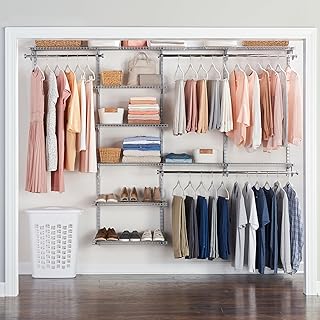
Rubbermaid Configurations Deluxe Custom Closet Kit 4-8 Ft.
Rubbermaid Configurations Deluxe Custom Closet Kit 4-8 Ft. Adjustable punches above its price — 81 buyers rated it 4.5 stars. I would buy it again.
7. Use Screen Time Limits to Stop Doomscrolling

You can’t talk about home screen organization without addressing the apps that steal hours of your life. Combat digital distraction by setting daily time limits for specific apps. On Android, go to Settings, then Digital Wellbeing, then App limits. You can set a strict one-hour limit for social media apps. iOS users can find this under Settings, then Screen Time, then App Limits. I have a terrible habit of opening TikTok just to check one video, and suddenly it’s 2 AM and I’m watching a guy carve a canoe out of a giant pumpkin. The infinite scroll is designed to trap you. I finally got serious about this and set a 30-minute daily limit on all social media. When the screen grays out and tells me my time is up, it’s a harsh but necessary reality check. To break the habit of using my phone as a kitchen timer (which always led to opening Instagram), I bought a physical $12.99 Peleg Design mechanical egg timer from Amazon. Now, when I’m roasting vegetables, I twist the physical dial instead of touching my screen. Keep the distracting apps out of your main layout, and let the software enforce your boundaries. You might also like: 20 Lovely DIY Home Makeover That Make a Real Difference
8. Customize Your Aesthetic with Minimalist Icon Packs

If you hate the chaotic clash of different app colors, icon packs are your best friend. On Android, you can explore icon packs like Tigad Pro Icon Pack. It has over 16,000 icons and supports 22 different launchers, usually costing around $1.99. You can also try Arcticons, which offers over 8,000 free, open-source minimalist icons. For iOS users, while it’s not native, apps like Widgetsmith and Widgy allow for extensive customization. You can get custom icons and widgets with free and premium features. Widgetsmith Premium is $1.99 a month. I tried doing this a few years ago and made a huge mistake. I downloaded a neon icon pack that made my phone look like a 1980s arcade game. It was impossible to read anything in the bright sunlight. I quickly deleted it. Now, I use a very simple, monochromatic beige icon set. It matches my phone case and makes the screen look like a calm, organized document rather than a toy store aisle. A pro tip: don’t change the icons for apps you need to find in an emergency, like your phone dialer or maps. Your brain relies on those familiar colors when you’re in a rush.
9. Use Widgets for Glanceable Info, Not Distraction

In 2026, widgets are powerful tools for productivity, but only if you use them correctly. Focus on widgets that display information you check frequently but don’t require interaction. A calendar showing your next few hours, weather updates, or a daily habit tracker are perfect examples. Popular choices include Google Keep for pinned notes, Google Calendar for daily schedules, and Microsoft To Do for task management. A few months ago, I put an interactive digital pet widget on my home screen. I thought it would be cute. Instead, I found myself constantly tapping it to feed the little pixelated dog while I was supposed to be working. It totally ruined my focus. I deleted it and replaced it with a simple, read-only list of my daily priorities. For detailed note-taking, I actually prefer physical paper. I always carry a $5.99 3-pack of Moleskine Cahier pocket notebooks I picked up from Target. I use the digital widget just to remind me of the big picture, and I use the physical notebook for the messy details. Your home screen should give you the answers you need in less than three seconds. If it takes longer than that, the widget isn’t doing its job.

4 Tier Storage Bins with Lids
Honestly, 4 Tier Storage Bins with Lids surprised me — sturdier than it looks in the photos, and over 63 buyers gave it 4.5 stars.
10. Direct New Downloads Straight to the App Library

A very common mistake is allowing every single new app to appear on your home screen automatically. This completely ruins your carefully curated layout. On iOS, go to Settings, then Home Screen and App Library, and select App Library Only under the Newly Downloaded Apps section. Android typically adds new apps to the App Drawer by default, but some custom launchers might offer similar settings. I learned this lesson the hard way. I was running late for a meeting and had to download a specific parking meter app near a downtown Trader Joe’s. After I paid for my parking and grabbed a quick $8.99 12 oz bag of their organic free-trade coffee, I looked at my phone. The ugly, bright orange parking app had shoved all my carefully arranged icons out of place, creating a new, messy page. It drove me crazy. By changing that one setting, new apps go straight to the hidden library. You can still search for them instantly, but they won’t mess up your aesthetic. It’s like having a mail slot that drops letters into a hidden basket instead of scattering them all over your front porch.
11. Delete Infrequent Apps and Use Browser Versions

For apps you rarely use but don’t want to completely lose access to, just use their web versions through your mobile browser. This keeps them off your home screen and out of your App Library entirely. It reduces digital clutter and frees up valuable storage space on your device. I used to have a dedicated app for a food delivery service that I literally used twice a year. It sat there, taking up space and occasionally sending me annoying push notifications about pizza discounts. I finally deleted it. Now, if I desperately need delivery, I just log in through Safari. The same goes for my warehouse club. I have a $60 per year Gold Star membership at Costco. I used to keep their app on my phone just to check warehouse hours. It was a waste of space. Now I just keep a bookmark in my browser. Be ruthless with your app auditing. If you haven’t opened an app in the last thirty days, delete it. If you find you need it again, downloading it takes ten seconds. Most companies want you to download their app so they can track your data and send you alerts. You aren’t obligated to give them prime real estate on your device.
12. Schedule a Monthly Home Screen Organization Audit

Your digital habits evolve constantly, so your home screen should too. Set a recurring monthly reminder to review your apps, delete unused ones, and reorganize folders and widgets to reflect your current needs. I treat this just like cleaning out my physical refrigerator. Things get stale, and you have to toss them. I have a specific routine for this. On the first Sunday of every month, I brew a cup of coffee using a $9.99 16 oz bag of Peet’s French Roast I grab from Walmart. I sit at my kitchen island, enjoy the rich, smoky smell of the coffee, and spend exactly ten minutes reviewing my phone. I check my screen time stats. I delete the random photo-editing apps I downloaded for one specific project. I update my widgets if the season is changing. During the winter, I want the weather widget front and center. During the summer, I swap it out for a pedometer widget to track my outdoor walks. If you don’t schedule this maintenance, the clutter will slowly creep back in. It’s inevitable. Setting a monthly date with your digital space keeps the chaos completely manageable.

iDesign Laundry Detergent Holder
If you want something that just works, iDesign Laundry Detergent Holder is a safe bet (13 reviews, 4.5 stars).
13. Turn on Smart Rotate for Widget Stacks

For a truly dynamic home screen, ensure Smart Rotate is enabled within your Smart Stacks. To do this, long-press the stack and tap Edit Stack. This simple toggle allows iOS to intelligently surface the most relevant widget based on your daily usage patterns. With iOS 15 and later, Widget Suggestions can automatically add apps you frequently use to your Smart Stack at the exact time you usually need them. I’ll admit, I was a little creeped out by this feature at first. It felt like my phone was reading my mind. Every day at 5:15 PM, right when I finish work, my podcast widget automatically rotates to the top of the stack. It knows I’m about to start cooking dinner and want to listen to a true crime show. First thing in the morning, it shows my calendar appointments. You don’t have to swipe manually; the phone does the work for you. If it ever suggests something unhelpful, you can easily turn off the suggestion feature for that specific app. Let the software learn your habits. It’s a fantastic way to keep your screen clean while still having instant access to the tools you need at specific times of the day.
14. Try Split Wallpapers for Visual Separation

Trending heavily in 2026 is the use of Split Wallpapers for visual organization. iOS 26 introduces native support for this, allowing you to divide your screen into distinct visual sections for apps and widgets. Even if you don’t have the newest software, you can easily create this effect by downloading a two-toned wallpaper image. For example, use the top half (maybe a solid dark color) for informational widgets like weather or news. Reserve the bottom half (a lighter color) for frequently used app icons. This enhances both organization and aesthetics by creating clear visual boundaries. I used to use a highly detailed, busy photo of my golden retriever as my background. I loved seeing his face, but the varied colors of his fur made half of my app text completely invisible. I was squinting just to find my email app. I finally gave up and bought a physical $24.99 8×10 wooden picture frame from Target. I printed the photo of my dog and put it on my desk. Then, I changed my phone wallpaper to a simple, split-tone geometric design. The difference in readability was staggering. Save the busy family photos for your lock screen, and keep the home screen background clean and functional.
15. Avoid the Trap of Over-Optimization

It’s very easy to fall down a rabbit hole of customization. Expert opinion warns that over-optimizing your home screen can lead to serious stress if it becomes too rigid or time-consuming to maintain. The ultimate goal is increased productivity and reduced friction, not a perfect, unchangeable layout. You shouldn’t spend more time organizing your phone than you do actually using it. I am completely guilty of this. Last year, I spent four solid hours creating custom, color-matched icons for every single app on my phone using a third-party shortcut app. It looked incredible for exactly one day. Then, an app updated, the icon broke, and I had to spend another twenty minutes fixing the shortcut link. I was furious. I realized the system I built was far too fragile. Be flexible and allow for the natural evolution of your digital space. If a folder system isn’t working for you after a week, ditch it. If you hate the Smart Stack, delete it. Your home screen should serve you, not stress you out. Accept that a little bit of functional mess is better than a rigid system that breaks every time you download a new tool.
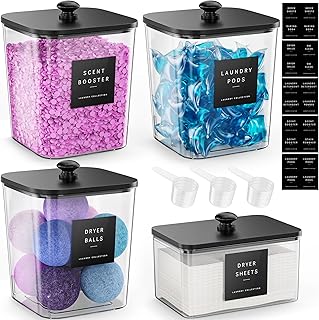
4 Pack Laundry Pods Container
4 Pack Laundry Pods Container has been one of the most consistently praised picks in this category. 473 reviewers averaged 4.5/5.
16. Match Your Digital Space to Your Physical Small Space

When you live in a tiny apartment, you quickly learn that everything must have a designated place. You can’t leave shoes in the middle of the floor when the floor is only ten feet wide. Treat your digital home screen with that exact same mindset. I currently live in a 400-square-foot studio. To keep my physical space organized, I bought a $39.99 4-tier bamboo shelf from Amazon. The bottom shelf is for shoes, the middle is for books, and the top is a charging station. My phone layout now mirrors this exact logic. The bottom row is for communication, the middle is for utilities, and the top is for passive information. When your physical space is cramped, looking at a cluttered, chaotic phone screen just adds to your underlying anxiety. It’s sensory overload. By applying small-space organization principles to your digital devices, you create a tiny pocket of control and calm. You’re building a digital sanctuary. Even if your physical apartment is messy on a particular Tuesday, opening your phone to a clean, minimalist, beautifully organized screen provides a surprising amount of mental relief. Give everything a designated digital shelf, and watch your daily stress levels drop.
I honestly hope these tips help you reclaim your digital sanity. I’ve tried dozens of different methods, but these sixteen strategies are the ones that actually stuck and made a noticeable difference in my daily life. Don’t try to implement all of them at once. Pick two or three that sound the most helpful, grab a cup of coffee, and spend fifteen minutes tweaking your layout today. If you found this guide helpful, I’d love it if you pinned this article to your favorite Pinterest organization board or saved it to your browser bookmarks for your next monthly digital audit. Your future self (and your thumbs) will thank you!
Frequently Asked Questions
How do I hide apps without deleting them?
On iOS, you can remove apps from your home screen and send them directly to the App Library. On Android, you can remove icons from the main screen while keeping them accessible in your App Drawer.
What is the best way to name app folders?
Instead of using generic nouns like ‘Utilities’ or ‘Productivity,’ use action-oriented verbs like ‘Create,’ ‘Watch,’ ‘Listen,’ or ‘Manage.’ This psychological trick makes it much easier to remember where your apps are located.
How many apps should be on my home screen?
Digital minimalism experts recommend keeping only one or two pages of essential, frequently used apps on your primary screens. Move everything else to your App Library or App Drawer to reduce visual clutter and doomscrolling.
What are Smart Stacks and how do they help home screen organization?
Smart Stacks allow you to combine multiple widgets into a single space on your screen. You can swipe through them manually, or let your phone automatically rotate them based on your daily habits, saving valuable screen real estate.
